Trading Interface
The Trading Interface allows users to submit buy or sell instructions through a connected brokerage account.
MarketQuants does not execute trades independently and does not hold customer funds or securities. All orders are transmitted to and executed by the connected brokerage provider.
Accessing the Trade Interface
You may open the trade interface from:
- Leaderboard: Select a ticker.
- My Positions: Select an existing position.
Chart & Analysis (Informational)
Each card includes an interactive chart to assist with analysis prior to submitting a trade instruction.
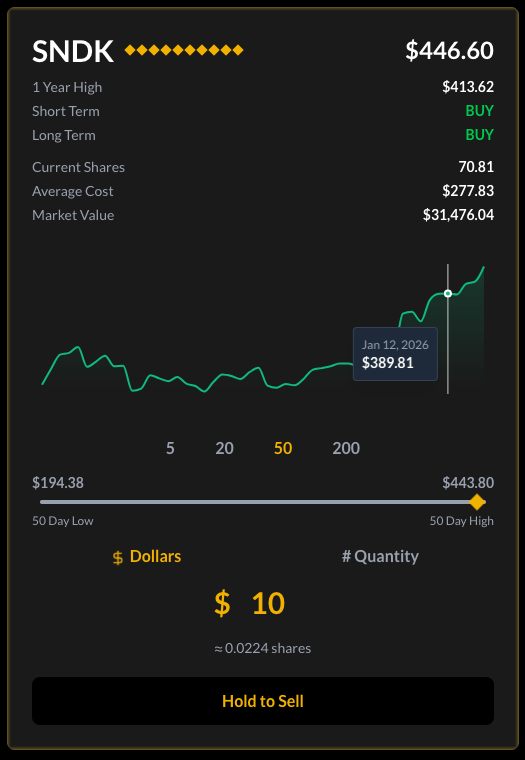
Chart Features
- Toggle between 5, 20, 50, and 200 day views.
- Tap the chart to view price and date details.
- Range indicators display historical high and low for the selected period.
MarketQuants provides analytical tools only. All trading decisions are made solely by the user.
Submitting a Buy Instruction
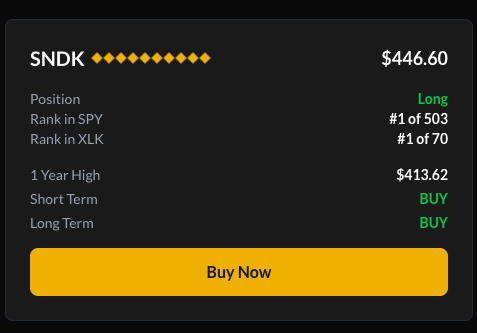
The Buy view allows users to submit a purchase instruction to their connected brokerage account.
Order Parameters
- Enter a Dollar Amount or Share Quantity.
- Review the input values before submission.
- Press and hold the confirmation control to submit the instruction.
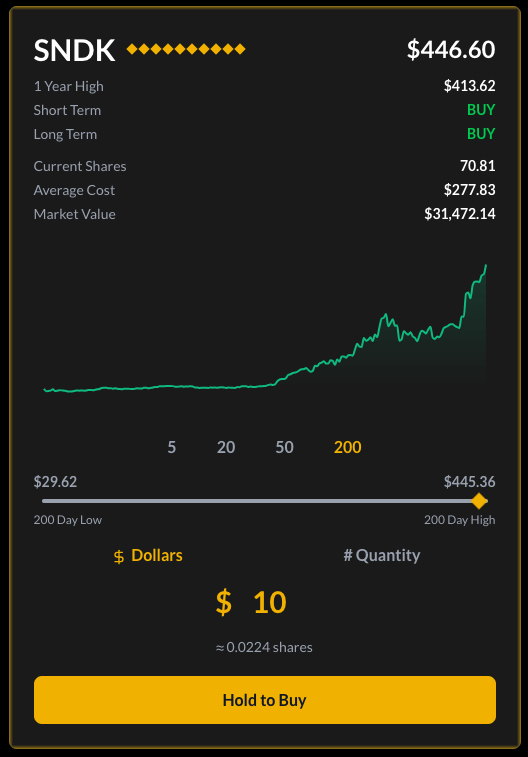
Upon confirmation, the order is transmitted to the connected brokerage provider for execution.
Managing Existing Positions
If you hold a position in a security, additional views become available.

Submit a Sell Instruction
The Sell view allows users to submit an instruction to reduce an existing position.
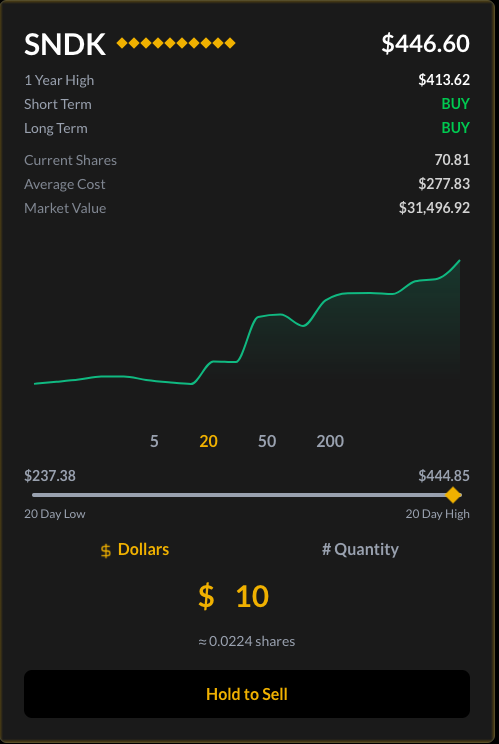
- Specify a dollar amount or share quantity.
- Confirm submission using the hold control.
The order is transmitted to the brokerage provider.
Submit a Full Exit Instruction
The Liquidate view allows users to submit an instruction to close an entire position.
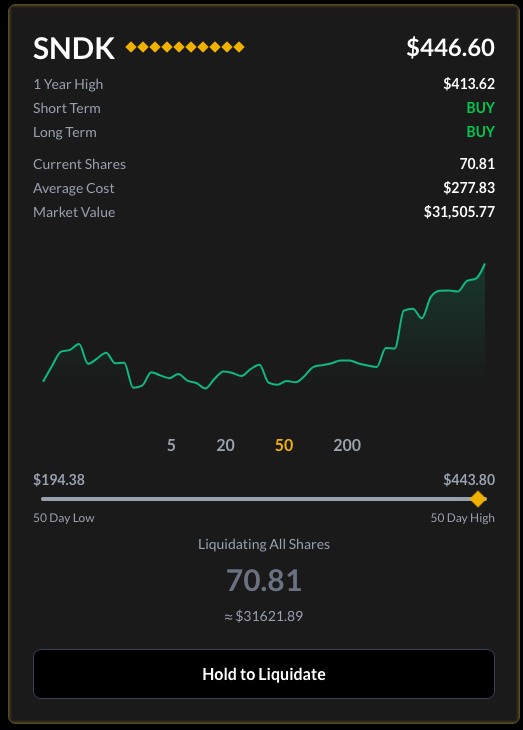
- The full position size is pre-calculated.
- Confirm submission to transmit the order to the brokerage provider.
Navigation & Gestures
- Swipe between Buy, Sell, and Exit views.
- Swipe to close the interface.
- Tap the information area to open the Information Card.