Onboarding: Sign In & Create an Account

Purpose

This section explains how users access MarketQuants for the first time. It covers signing in, creating a new account, verifying an email address when required, and recovering access if a password is forgotten. The goal of onboarding is to provide a fast, secure, and reliable entry into the platform.


What You’ll Learn

  • How to sign in to MarketQuants using email or Google
  • How to create a new MarketQuants account
  • When email verification is required and how it works
  • Password requirements during signup
  • How to reset a forgotten password
  • What to expect after successful login

Sign In to MarketQuants

How to Use This Feature

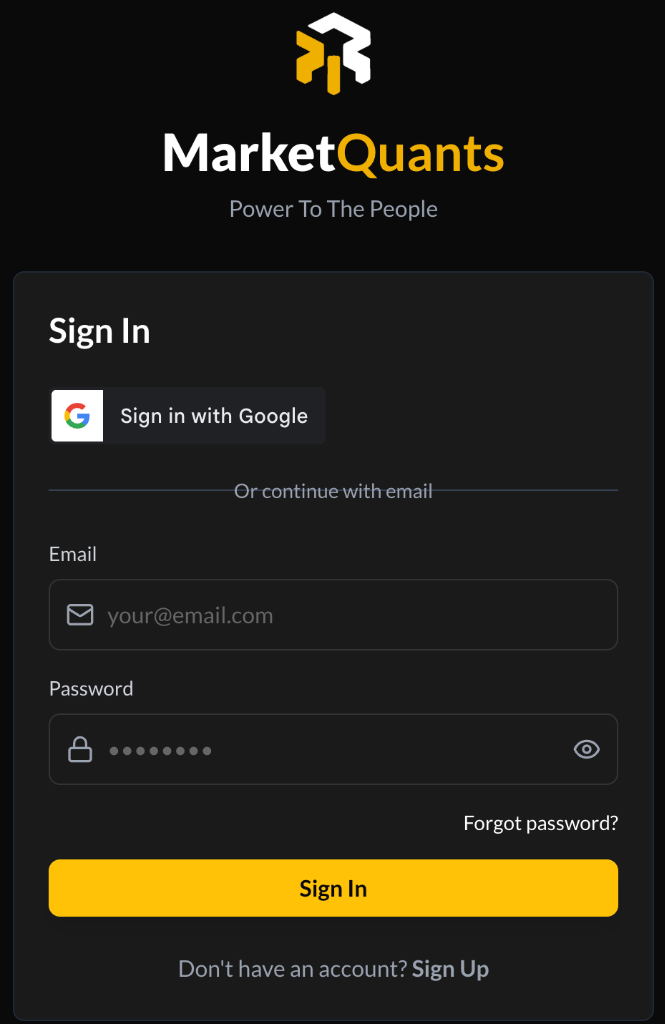
The Sign In screen allows existing users to access MarketQuants using either:

  • Google authentication, or
  • Email and password

Both methods provide access to the same MarketQuants account.

Steps

Step One
Open the MarketQuants application and navigate to the Sign In screen.

Step Two (Optional)
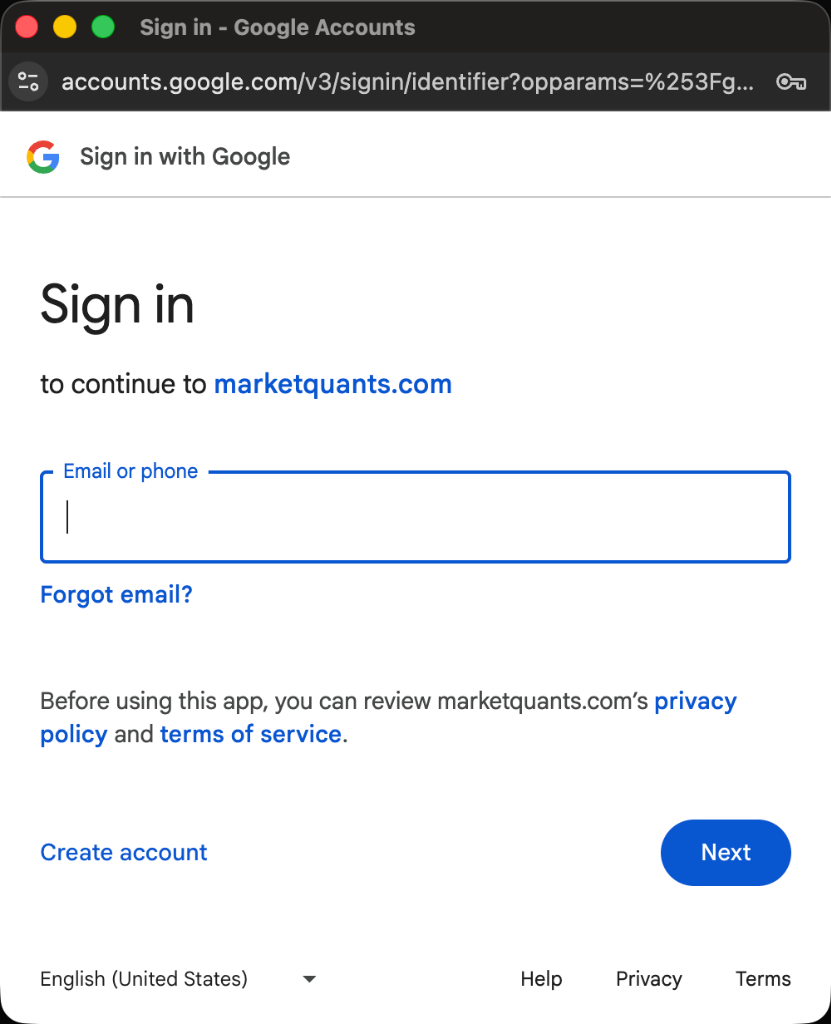
Select Sign in with Google to authenticate using your Google account.

Step Three (Email Sign In)
If signing in with email:

  • Enter your email address
  • Enter your password
  • Select Sign In

Step Four
If credentials are valid, you will be redirected to your portfolio dashboard.


Sign In Errors

If the email or password is incorrect, the following message appears:

Invalid email or password

Re-check your credentials or use password recovery if needed.


Create a New Account (Sign Up)

How to Use This Feature

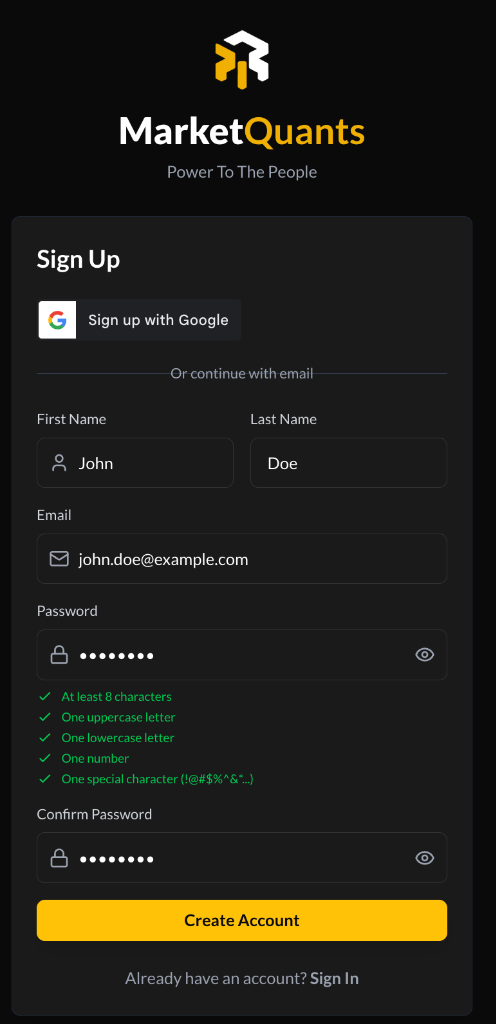
The Sign Up screen allows new users to create a MarketQuants account using Google or email.

Steps

Step One
From the Sign In screen, select Sign Up.

Step Two (Optional)
Select Sign up with Google to create an account using your Google profile.
No email verification is required for Google sign-up.

Step Three (Email Sign Up)
If signing up with email, enter:

  • First Name
  • Last Name
  • Email Address
  • Password
  • Confirm Password

Step Four
Ensure your password meets all requirements:

  • At least 8 characters
  • One uppercase letter
  • One lowercase letter
  • One number
  • One special character (e.g., ! @ # $ % ^ & *)

Step Five
Select Create Account.

Step Six (Email Verification Required)
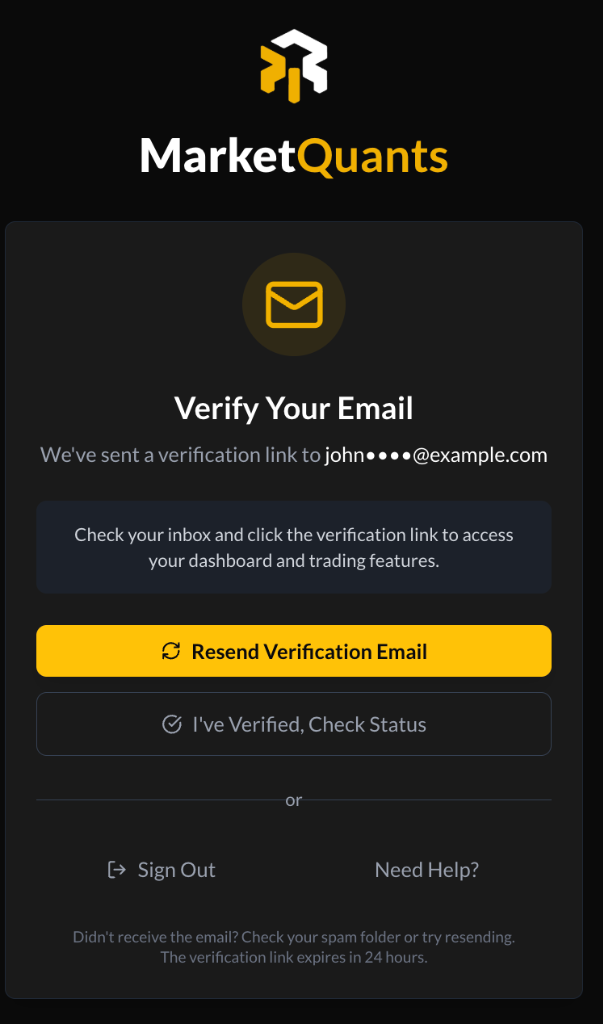
If you signed up using email:

  • A verification link is sent to your registered email address
  • You must verify your email before accessing MarketQuants
  • Select the link in the email to complete verification

Once verified, you can sign in and access the platform.


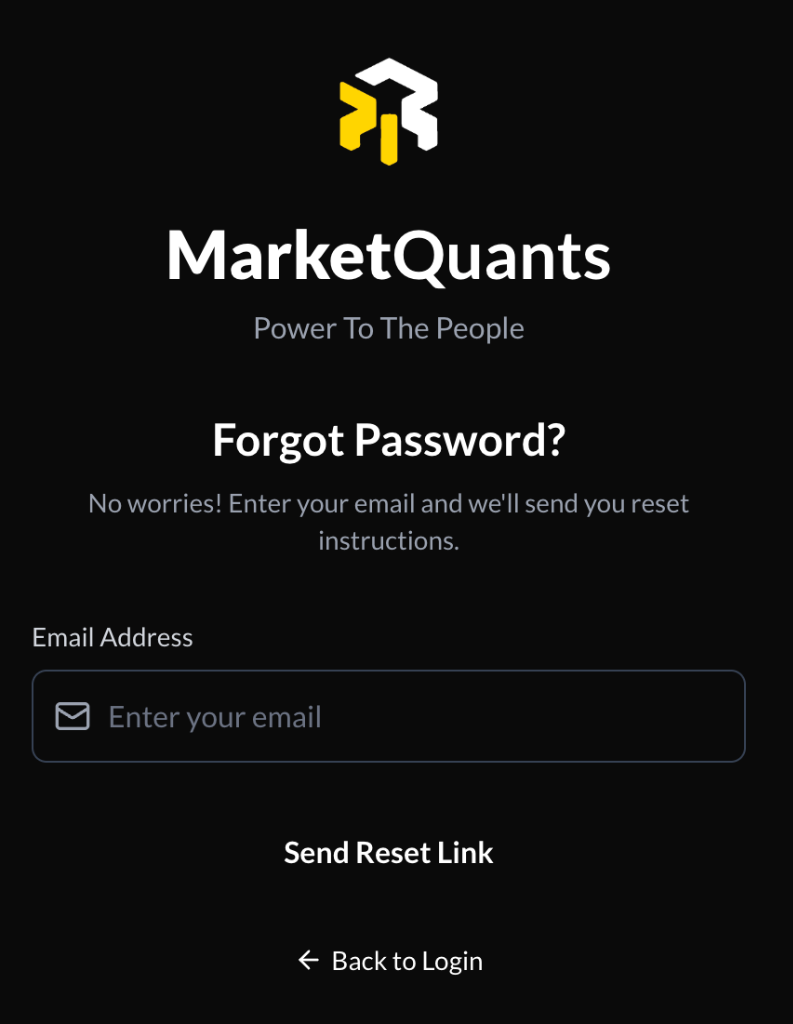
Forgot Password

How to Use This Feature

If you forget your password, MarketQuants allows you to request a secure reset link.

Steps

Step One
On the Sign In screen, select Forgot password?

Step Two
Enter your email address and select Send Reset Link.

Step Three
Check your email and follow the reset instructions.

A confirmation screen indicates that, if an account exists for the entered email, a reset link will be sent.


Notes

  • Password fields include a visibility toggle to show or hide input
  • Google sign-in and sign-up do not require email verification
  • Email-based accounts must be verified before first access

Important Edge Cases

  • Verification or reset emails may arrive in spam or promotions folders
  • Entering an unregistered email during password reset does not confirm account existence
  • Users who do not verify their email cannot access the dashboard

Safety & Security

  • MarketQuants does not disclose whether an email address is registered during recovery
  • Email verification helps prevent unauthorized or mistyped account creation
  • Users are responsible for maintaining the security of their credentials

What Happens Next

After successful login, users are redirected to their Portfolio Dashboard, where balances, positions, and update timing are displayed.


  • Quick Start
  • My Portfolio
  • Account Settings
  • Security Notes